|
<< Click to Display Table of Contents >> Creating Graphics/Mimics |
  
|
Creating Graphics/Mimics
|
<< Click to Display Table of Contents >> Creating Graphics/Mimics |
|
Graphics and Mimics can be created in SpecView using a number of methods:
Photo/Image:
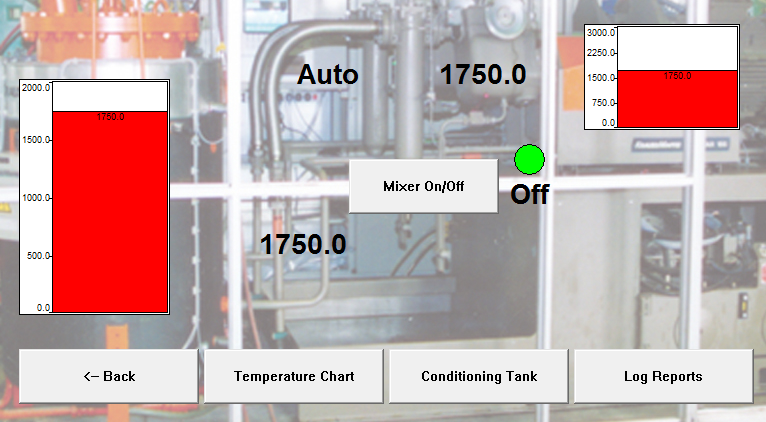
Take a photo or scan a picture or draw a digital image and convert the JPG file into a BMP file using any image processing software, or use Microsoft Paint and use 'Save As' to save it as a BMP file. It is an idea to grey-out the image to reduce its contrast. It is also a good idea to resize the image smaller so that it is nearer the correct size. This avoids making the project slow to open and will also save disk space when Archiving the project.
Then use SpecView's Bitmap tool to display the bitmap.
Double-click the bitmap and uncheck the 'Fix to Original Size' checkbox so it can be resized to exactly the size required.
Note: The bitmap can be locked into position to avoid it being inadvertently moved with the cursor.
Values, buttons, barcharts, etc. can be put on top of it for easy visual feedback.
If the bitmap seems to be 'on top' of the values then select the bitmap and choose 'Move to Back' from the Object menu.
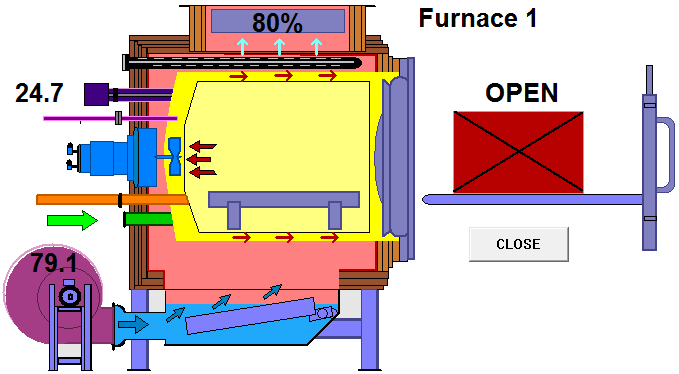
GDO (Graphical Display Objects):
Graphics made with SpecView's drawing tools can be grouped and saved as GDO's using the Save Object menu command on the Object menu. The saved GDO's can be re-used (using the Load Object menu command) any number of times in any GDW in any copy of SpecView.
Color Dynamics:
Color Dynamics can be used to change the color of objects and text on the screen according to the value(s) of variables(s).
Position Dynamics:
Position Dynamics allow objects on the screen to be positioned (moved) according to the value(s) of variables(s). This allows a basic form of animation, such as a showing something moving along a conveyor belt.
ActiveX:
ActiveX controls to represent the appearance and functionality of components and HMI elements can be purchased from various third-party developers and be displayed on SpecView's screens (GDWs).