|
<< Click to Display Table of Contents >> Preferences in SETTINGS.INI |
  
|
|
<< Click to Display Table of Contents >> Preferences in SETTINGS.INI |
|
The SETTINGS.INI file is a file of project specific settings which is read by SpecView when a project is read.
It is located in the project folder (C:\SV3\<project_name>\SETTINGS.INI)
There are some Preferences which apply to a project that cannot be changed using the Preferences box and will therefore need to be entered by hand into the SETTINGS.INI file.
To edit the SETTINGS.INI file use a text editor such as Notepad to edit the file (carefully!) while SpecView is NOT running.
Be sure to check the spelling because they must be exact, and there must NOT be any spaces around the equals signs, or at the end of the lines.
See also: SV3.INI and CVTSETTINGS.INI
The SETTINGS.INI file has the following sections:
[ActiveX]
[ALARM]
[COMMS]
[DDE]
[HISTORY]
[LiveFeatures]
[LOGFILECONVERSION]
[LOGGING]
[Networking]
[Recipe]
[Remote]
[RUNTIME]
[Settings]
[STARTUP]
[STRATEGY]
[Trend]
[TrendInhibitNotesOn]
[V3GD3sSaved]
[VarList]
[WindowsPos]
It is important that the settings below are added under the correct section heading in the file:
| • | MaxPorts (default: 9) set in the [COMMS] section of SETTINGS.INI. |
Allows support for COM10 (and above). This is initially set to 9, but can be increased up to 40 to allow the use of com ports from COM1 to COM40. Note that changing the COM port settings (BAUD rate, etc.) will need to be done 'by hand' by editing Settings.ini using Notepad, this is because the 'Setup COM Ports' box (from the Setup menu) only has space for up to 9 ports.
| • | AutoSaveUserVars (default: 3600) set in the [RUNTIME] section of SETTINGS.INI. |
To alter the rate (in seconds) at which SpecView saves the values of User Variables while it is running.
The default 3600 is every hour. If there are a large number of SpecView User Variables, then do not save them very often as this will slow down the system, especially on heavily loaded computers. The values are automatically saved whenever SpecView goes offline or is exited.
| • | RunExtProgDispMode (default: M) set in the [Settings] section of SETTINGS.INI |
This specifies whether programs run using the action SpecView: Run External Program are started with the program's window minimized/normalized or maximized.
Where the choices are:
M - means start Minimized, which is the default
F - means start using Full screen
N - means start in a Normal window
This setting will affect all programs run by SpecView from that project.
| • | InputsDisabledInHistoricalReplay (default: N) set in the [ActiveX] section of SETTINGS.INI |
See details here.
| • | ScrollbackAutoCancelSecs (default no timeout) set in the [Trend] section of SETTINGS.INI |
This example will auto-cancel Scrollback after 5 minutes:
[Trend]
ScrollbackAutoCancelSecs=300
This setting will apply to all charts in this project.
Moving the scrollback-thumb-tag thing resets the timer, it is only if it is left alone that it will time-out.
| • | Trend Chart ID (default all chart notes are displayed) set in the [TrendInhibitNotesOn] section of SETTINGS.INI |
For the Trend Chart for which no NO chart notes should be displayed, choose Setup chart and go to the Buttons & View tab and press the [Current Chart memory statistics] Button:
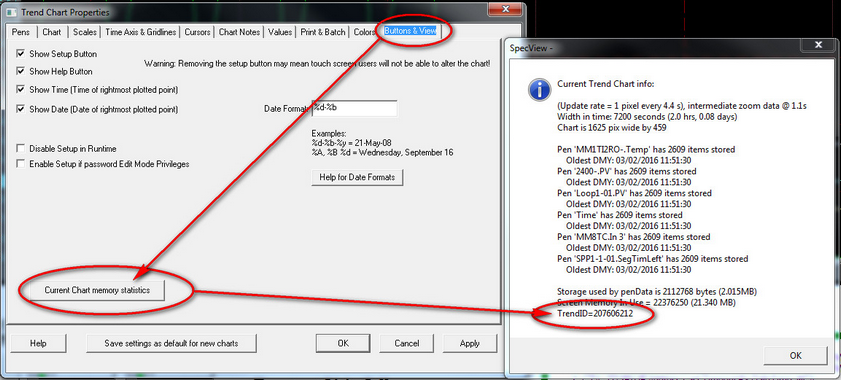
Make a note of 'TrendID' number, in this example it is: 207606212.
Use Notepad to open the SETTINGS.INI file that is in the Project folder.
Find the [TrendInhibitNotesOn] section, or if it is not there then add this section header and the ID followed by =1, as shown:
[TrendInhibitNotesOn]
207606212=1
Be sure to enter the correct ID as shown for your Trend Chart.
If there is more than one chart that needs the chart notes inhibited, then add them on further lines.
Then save the SETTINGS.INI file.
The inhibit will only work when the Trend Chart Screen is opened, so if SpecView was still running during these steps, then close the screen and re-open it, or just Restart SpecView.
To display the chart notes again, delete the line(s) you added or change them to '=0' instead of '=1'.
As of SpecView 3.1.267, users can enable their SpecView project to automatically abort after encountering an error in a Strategy invoked Recipe download. This means that users no longer must be present to abort the Recipe download.
| 1. | In the Project Folder, open the Settings.INI file in the Notepad application. |
| 2. | Under the [Recipe] section, type in “StrategyAutoContinue=N”. |

| 3. | Save and close the SETTINGS.INI file. |
Strategy invoked Recipe downloads will now automatically abort when it encounters an error.
Additionally, entering "DownloadToReadOnly=Y" enables users to download values to read-only variables using Recipe.